Why This Exist
Unity have its official way on tackling localization/internationalization system. It is a comprhensive one, but for most indie games, the system is overkill for our own needs. It provide a lot of features that most indie games do not need. It also require some good amount of time to learn it. Even more, for most of us, localization is an afterthought. Most of us implement it after the game is done or add it on demand. Thus, we need a Translation system that easy to use, easy to learn, and easy to inject to our current projects.
Thus, these are the reason why this plugin exist.
In this blog, i will teach you how to use this plugin from setup to display them inside Unity.
Installation and What's Inside
To install, you just need to download and drop the unitypackage file into your project.
The package itself not only including localization system, but also a Helper editor script to make your life easier when using the system. It contains TSV file importer, auto generate enums, and gather _key_ from component (this _key_ will be explained further below). This allows you to make changes quicker.
Setup Your Translations
First of all, set every text components such as TextMeshProUGUI component to unique _key_ like the image below.
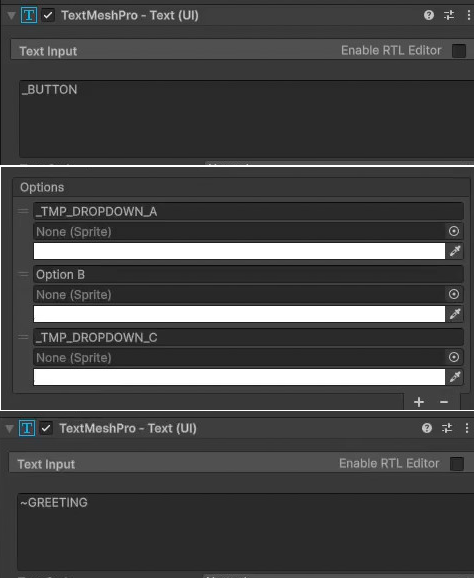
Maybe you already notice, at top of the image, it has prefix. The underscore ( _ ) symbol is for text Components that are only live inside a scene (such as button names on Main Menu scenes) and the tilde ( ~ ) symbol (at middle of the image) is for text components that are persists across scene like Settings Menu that implemented or other texts that behaves like Singleton.
Both of these are inside a file that called "Unchained Text" (for easy to remember). This "Unchained Text" mostly used for GUI stuff (those text components who belong as children of Canvas component).
At the bottom of the image is called "Chained Text" (because one key handling more than one sentence). The _key_ column, will be use as enum later, which means that this suitable for gameplay related texts, such as dialogues and inventory descriptions.
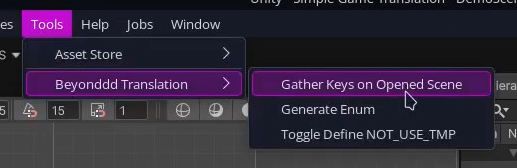
After that, at the editor's menu bar, click "Simple Translation/Gather UI Text Game Object Name as Key". This will generate all the keys inside a text file, so you can easily copy paste that into the spreadsheet to setup the translations.
Then, you need to setup all the words that need to be translated. The most common way is using spreadsheet. I recommend using Google Sheet because it is hosted online and can be easily shared among coworkers.
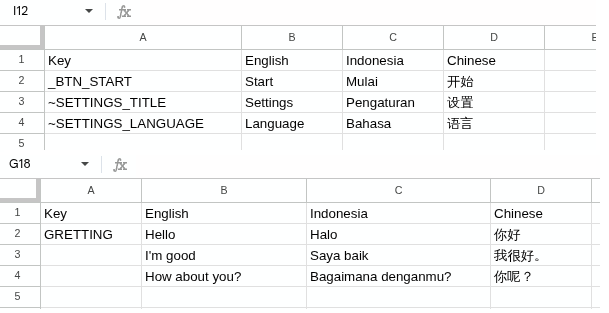
As you can see above, you need there is three columns. The most important one is the _key_ column. It's the way to determine each translation, so make sure it is unique. Other columns are the languages. It is needed to generate _Language enum_, so it is recommended for you to provide the correct language names, especially if you want to detect player's system language and adjust it accordingly.
After the spreadsheet ready, just copy and paste "Unchained Text" and "Chained Text" to its file respectively. These files are on Assets/BeyondddTranslation/Resources. This is necessary because the path are currently hardcoded and used to generate enums (if you want to change it, just go to BeyondddHelper.cs file and changed it accordingly).
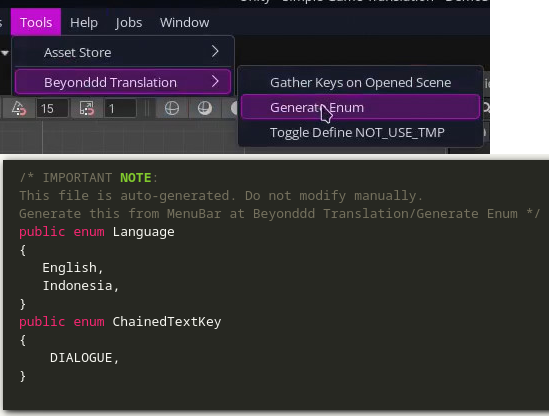
Press "CTRL + R" to refresh the assets file if you don't see your project, but if you see the TSV files, then hit the "Simple Translation/Generate Enum". This will overwrite _Language enum_ and _ChainedTextKey enum_ inside TranslationEnums.cs file.
Usage
The usege is simple, attach SimpleTranslation script to a singleton gameobject (a gameobject that have script calling DontDestroyOnLoad attach to it). But, if you want to the script to behave as singleton, you just have to enable isDestroyOnLoad property in the inspector. Also, you can enable setLanguageBasedOnDevice to setup the language first based on
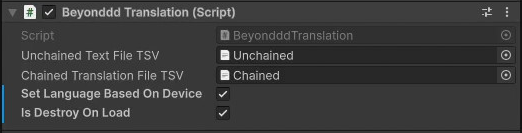
Then, attach those TSV files in the inspector.
Before run the game, generate _Language enum_ and _ChainedTextKey enum_ by click "Simple Translation/Generate Enum" in Editor's Menu Bar.
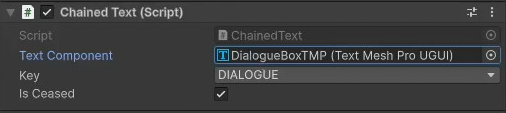
For Chained Text, it should be handled manually. Call GetChainedTextList method to get all the texts. If you want the language changed, just simply call this method again to get the list of current language.
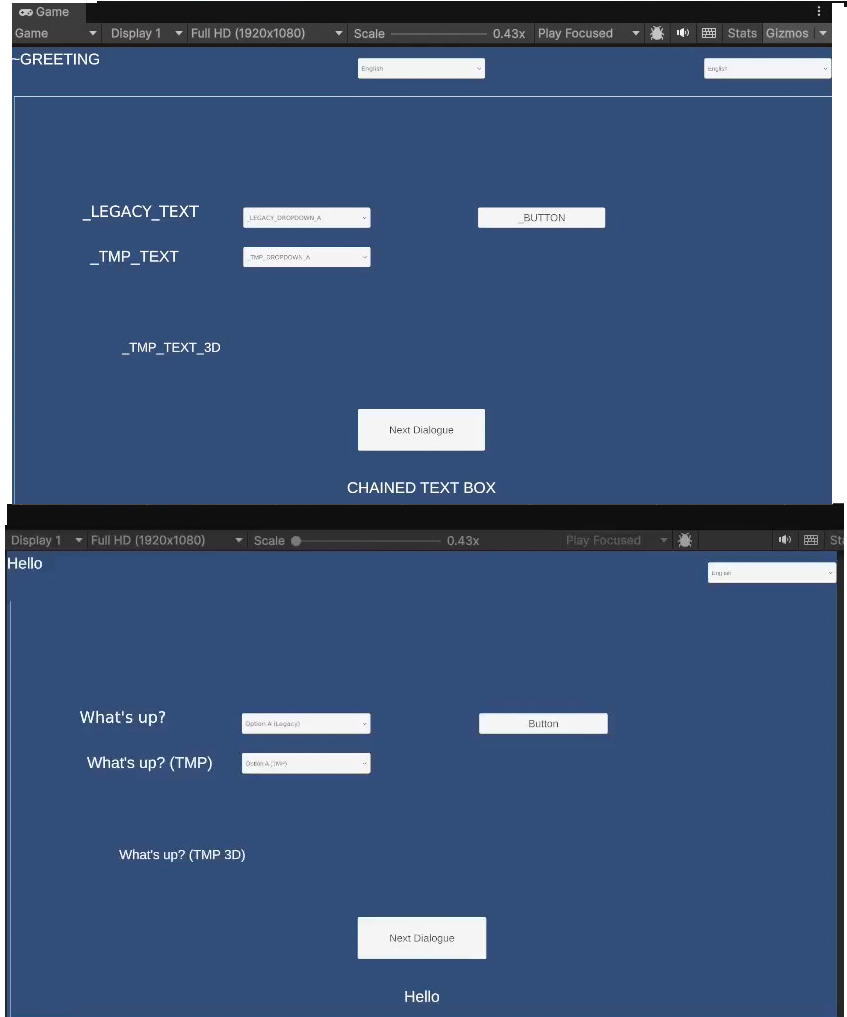
After that, if you run the game, you will notice that the all _key_ for Unchained Text and Chained Text that you have setup has changed to its according words. The system also handling it automatically every time scene changed.
And that's all. Eazy peazy.
Bonus
Did you know that UnityHub is built with Electron. If you don't know Electron, it is a framework to build desktop app with JavaScript. Which means if it runs, it relies on Chromium or a whole browser. As you might know, browser like Chrome can took a lot of your memory and this is also happening with UnityHub. It's crazy to think that an application that used mostly only for opening your project use a lot of memory (i ever encounter UnityHub consume more than 1 GB RAM when it only idling in the background). It is insanely unnecessary use of memory.
On this day and age of expensive RAM, memory is really precious. people who runs Unity with only 8 GB RAM may understand this even more (i'm one of those people :D).
But, you don't need to worry. We can open our project without using UnityHub and saves that unnecessary cost.
nohup /home//Unity/Hub/Editor/<EDITOR VERSION>/Editor/Unity -projectPath "/path/to/your/project/folder/" &


"C:\Program Files\Unity\Hub\Editor\<EDITOR VERSION>\Unity.exe" -projectPath "path\to\your\project\folder"
Just write this once (top line in .sh file for Linux and bottom line in .bat file for Windows) and run it by double click or inside a terminal. That's it ! A good chunk memory saved !
You're welcome :D
References: